This guide covers the process to file a 1099-NEC form online and report nonemployee compensation to the IRS.
- Click Add New Form.
- On the Start a New Filing page, click the 1099-NEC card.
Tip:
If you want to file a form for a previous year, click the year and then click the type of form you want to create. Not all forms are available for every year listed.
- Select the filer, then click Continue.
- Select the recipient associated with the filer, then click Continue.
This will take you to a blank 1099-NEC form for the tax year you selected.
- Complete your form.
eFileMyForms will autopopulate the filer and recipient information based on your previous selections.
Tip:
Click Download instructions (.pdf) to download a PDF file with detailed instructions from the IRS on how to fill out your form. eFileMyForms doesn't provide tax advice.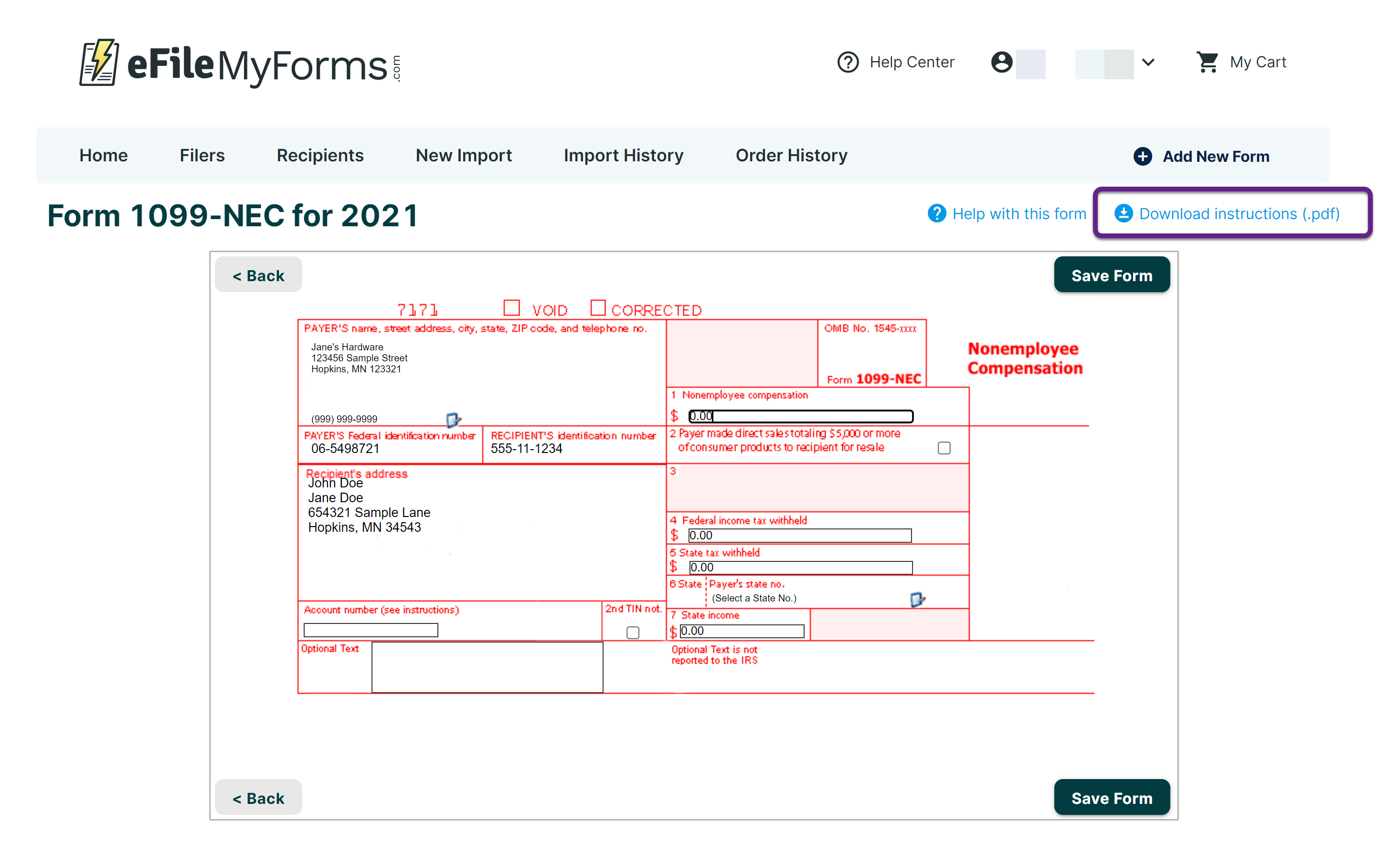
- Enter a dollar value in at least one field and make sure that the nonemployee compensation field has a value greater than 0.
- Click Save Form.
- On the Filing Saved page, click Add Filing to Cart to begin the checkout process.
Alternatively, click Create another Form 1099-NEC to repeat the form creation process.
- On the Shopping Cart page, select the type of filing service for each form by clicking the dropdown in the Service column.
Tip:
Download reports for your order by clicking Summary Report and Totals Report.
- Click Secure Checkout.
- Complete your payment information and billing address.
- If this is your first order, enter your billing and payment information first.
- If you'd like to update your payment information, click Change this card.
- Click Review your order.
- Optional: In the Add-on Services section, add additional services such as TIN masking and TIN matching.
- Click Submit and Pay.

 Sovos.com
 Contact Support