Learn how to create a 1042 form and submit it to the IRS.
- Go to the Withholding Forms page, then click Create 1042 form.
- Next to Payer information, click Add.
- If the payer is already in the system, search for the payer by name or ID, then select it from the search results.
Tip:
-
To search by ID (TIN), enter nine digits with no dashes, for example, 123456789. To search by name, enter at least three characters.
-
If you added the incorrect payer, click Change to add a different one.
- If the payer is not in the system, click New payer, then fill out the required fields and click Save.
Note:
A payer can only be added to one 1042 form.
- Enter the required information in the 1042 form fields.
Monthly totals will auto-calculate.
- Optional: If you need to include a Schedule Q form with your 1042 information, follow these steps:
- Select the checkbox in Section 4, then click Attach Schedule Q.
- Scroll down to enter the required fields marked with an asterisk (*) and form amounts.
- Optional: If you are reporting values on line 61, read about how to attach 1042-S forms.
- Click Save.
- Optional: To save a PDF of the form, click the More options icon, then click Generate PDF. In the e-signature pop-up, enter your full name and title, then click Generate.
- Click Certify and submit.
- Enter a PIN. Then enter your title, full name, and Social Security Number (SSN).
- Click Submit.
-
On the Withholding Forms page, the form has a Submitted status. The Confirmation number field will populate when the IRS shares it.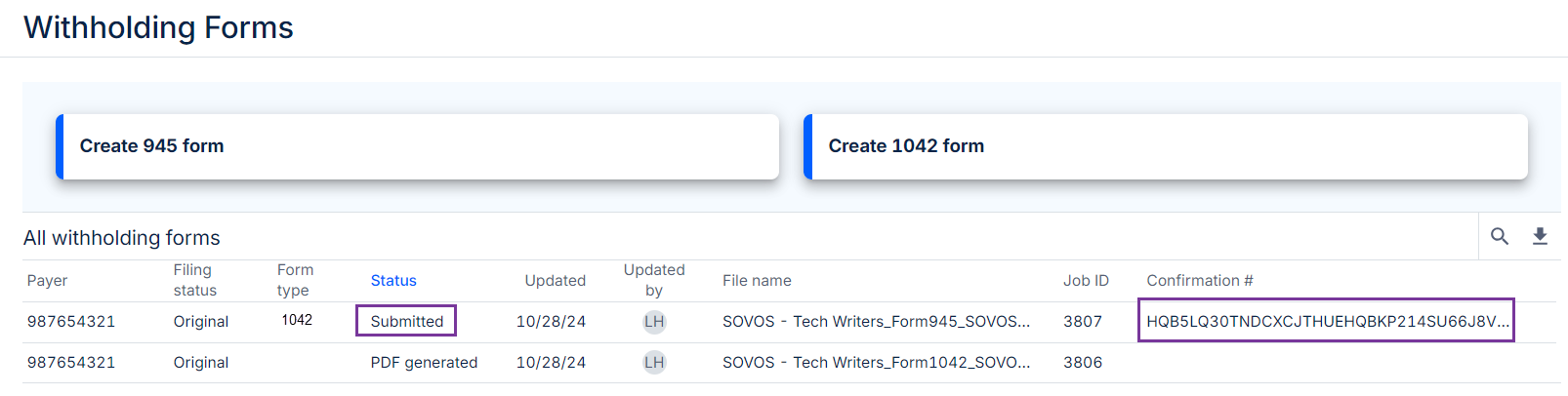
-
Read about withholding forms statuses for explanations of each status, including Accepted or Rejected by the IRS.
To download a copy of the transmittal, click the More options icon in the form's row on the Withholding Forms page and select Download transmittal . You can also find it under Transmittal files on the File Manager page.

 Sovos.com
 Contact Support